How to Play PolyTrack on Chromebook, iPad & Mobile in 2026
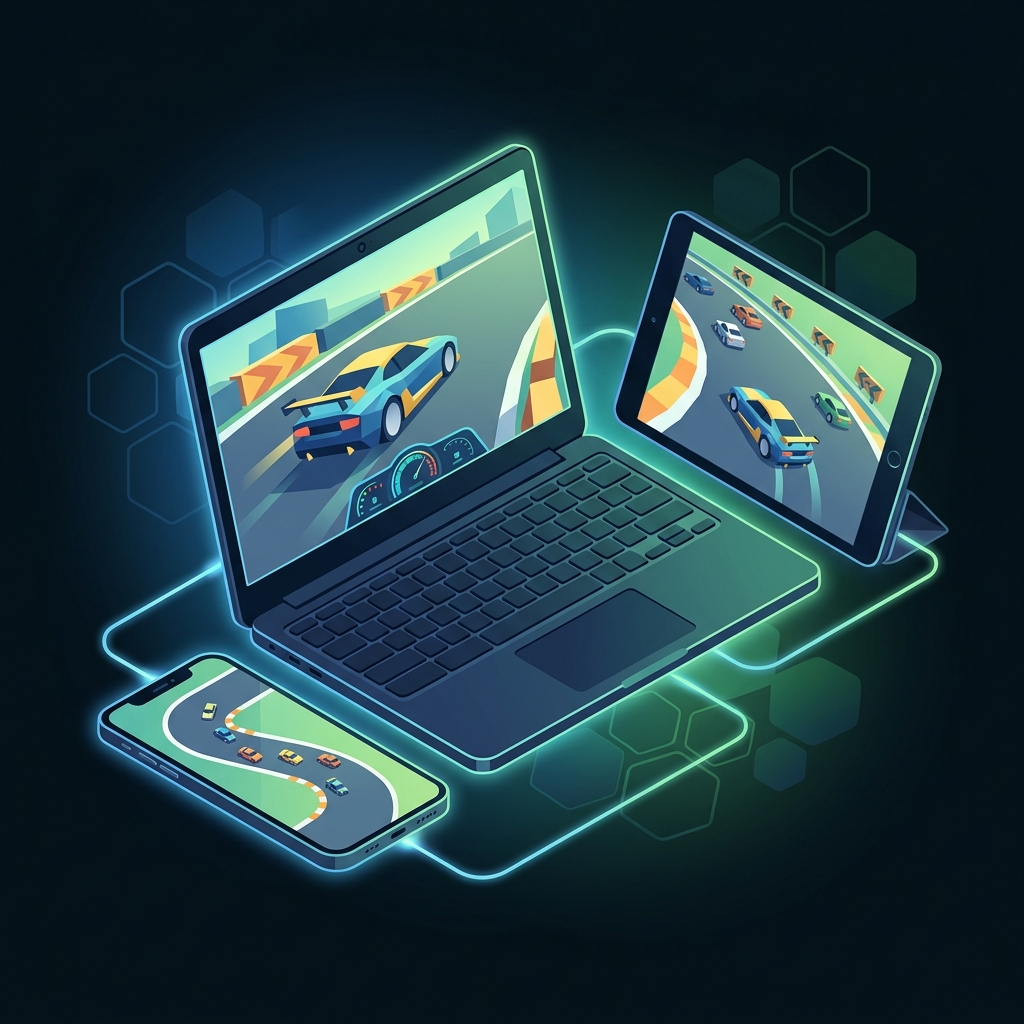
PolyTrack runs entirely in the browser, which means it works on far more devices than most people realize. You do not need a gaming PC, a Steam account, or any download. If your device has a modern web browser with WebGL support, you can race.
This guide covers every platform — from school Chromebooks to iPads to Android phones — with specific setup instructions, performance tips, and fixes for common issues.
Platform Compatibility Matrix
Before diving into setup, here is the full compatibility picture:
| Platform | Browser | Status | Performance | Controls |
|---|---|---|---|---|
| Windows PC | Chrome / Edge / Firefox | ✅ Full Support | Excellent | Keyboard |
| macOS | Chrome / Safari / Edge | ✅ Full Support | Excellent | Keyboard |
| Chromebook | Chrome | ✅ Full Support | Good to Great | Keyboard |
| iPad | Safari / Chrome | ✅ Playable | Good | External Keyboard Recommended |
| Android Tablet | Chrome / Edge | ✅ Playable | Good | External Keyboard Recommended |
| iPhone | Safari | ⚠️ Limited | Moderate | Touch Only (Difficult) |
| Android Phone | Chrome | ⚠️ Limited | Moderate | Touch Only (Difficult) |
| Linux | Chrome / Firefox | ✅ Full Support | Excellent | Keyboard |
The Bottom Line: If you have a physical keyboard attached to your device, PolyTrack runs well on virtually any modern platform. Without a keyboard, the game is technically playable but significantly harder to control.
Chromebook: Full Setup Guide
Chromebooks are one of the best non-PC platforms for PolyTrack. The Chrome browser runs the game natively and most modern Chromebooks have enough GPU power for smooth gameplay.
Step 1: Check Your Chrome Version
PolyTrack requires Chrome 90 or later. To check:
- Open Chrome
- Type
chrome://versionin the address bar - Confirm your version is 90+
Most school-managed Chromebooks automatically update, so this is rarely an issue.
Step 2: Enable Hardware Acceleration
This is the single most important performance setting:
- Open Chrome Settings (three dots → Settings)
- Search for "hardware acceleration"
- Toggle Use hardware acceleration when available to ON
- Restart Chrome
Without hardware acceleration, PolyTrack will run on CPU-only rendering, which causes significant lag and frame drops.
Step 3: Navigate to PolyTrack
Go to kodub.itch.io/polytrack — this is the official game page. Click "Run Game" and wait for the WebGL context to load.
Step 4: Optimize Performance
If you experience lag:
- Close other tabs. Each open tab consumes RAM. On a Chromebook with 4GB RAM, PolyTrack should ideally be the only active tab.
- Close Android apps. If your Chromebook runs Android apps, close them — they compete for GPU resources.
- Lower the game resolution. In PolyTrack's settings, reduce the render resolution to 75% or 50%.
- Disable extensions. Ad blockers and other extensions that inject content into pages can interfere with WebGL rendering.
Chromebook-Specific Controls
PolyTrack uses standard keyboard controls that work identically on Chromebooks:
| Action | Keys |
|---|---|
| Accelerate | W or Up Arrow |
| Brake/Reverse | S or Down Arrow |
| Steer Left | A or Left Arrow |
| Steer Right | D or Right Arrow |
| Drift/Handbrake | Space |
| Reset | R |
Trackpad Note: The Chromebook trackpad works for camera control in the editor, but is not needed for racing. All racing controls are keyboard-only.
iPad & Android Tablet Setup
Tablets offer a larger screen than phones and can provide a surprisingly good PolyTrack experience — especially with an external keyboard.
Recommended Setup
The ideal tablet setup:
- iPad with Magic Keyboard or Android tablet with Bluetooth keyboard
- Safari (iPad) or Chrome (Android) as the browser
- Landscape orientation locked
Step-by-Step
- Open Safari (iPad) or Chrome (Android tablet)
- Navigate to kodub.itch.io/polytrack
- Tap "Run Game"
- If prompted, allow the page to go fullscreen — this prevents accidental swipe-away gestures
- Connect your Bluetooth keyboard
- Start racing with standard WASD controls
Touch Controls (No Keyboard)
Without a keyboard, PolyTrack responds to on-screen touch in a limited way. The game was not designed for touch input, so expect:
- Steering by tapping left/right sides of the screen
- Acceleration via on-screen prompts (if available in the version)
- Significantly reduced precision compared to keyboard input
For serious play on a tablet, an external keyboard is strongly recommended. Budget Bluetooth keyboards start under $20 and transform the experience.
iPad-Specific Issues
- Safari Tab Cycling: Safari may unload the PolyTrack tab if you switch to another app. Avoid multitasking during gameplay.
- Low Power Mode: Disable Low Power Mode — it throttles GPU performance and causes frame drops.
- iPadOS 16+: Required for reliable WebGL 2.0 support. Older iPads on iPadOS 15 may experience rendering glitches.