PolyTrack Controls & Keyboard Shortcuts: The Complete 2026 Cheatsheet
Whether you are loading PolyTrack for the first time or have 500 hours in the editor, this page covers every control input in the game. Bookmark it — you will come back.
Racing Controls
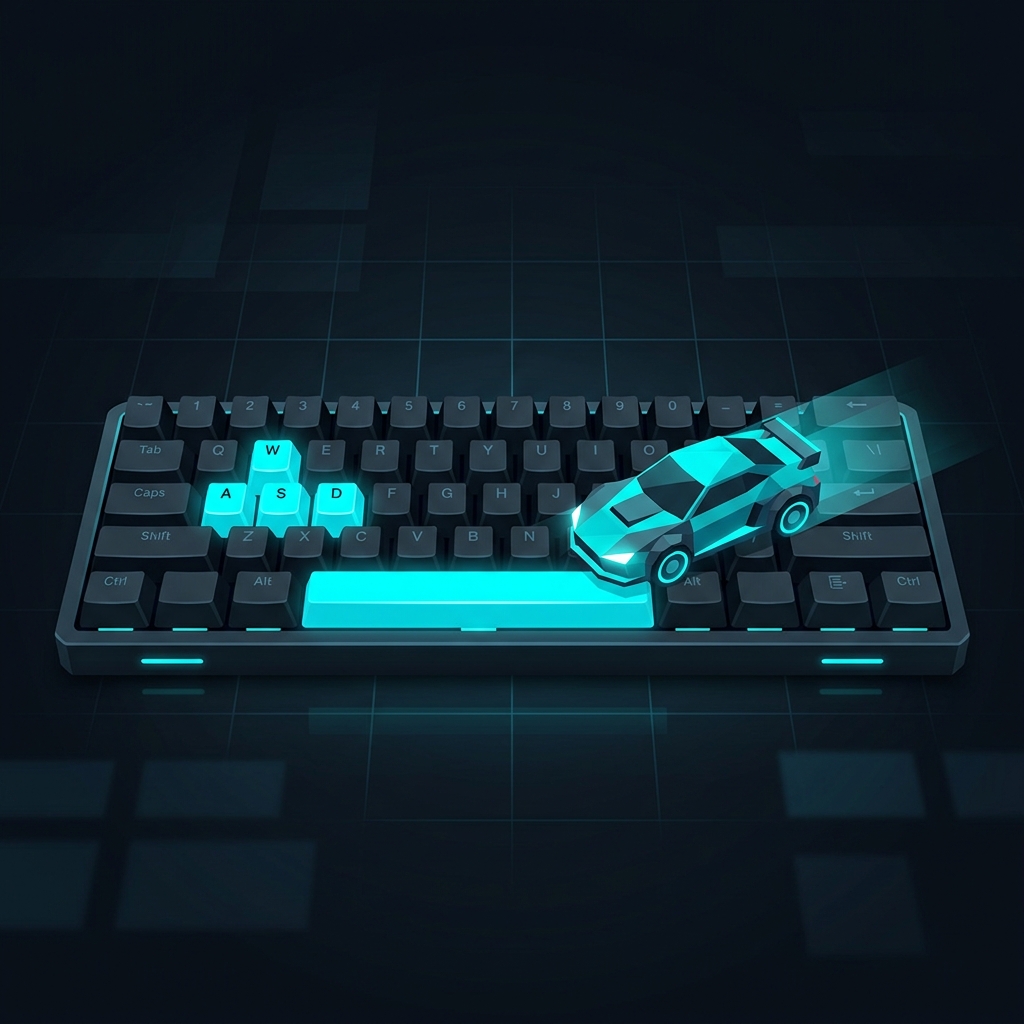
These are the core driving inputs. Both WASD and arrow key schemes work identically.
| Action | Primary Key | Alternative |
|---|---|---|
| Accelerate | W | Up Arrow |
| Brake / Reverse | S | Down Arrow |
| Steer Left | A | Left Arrow |
| Steer Right | D | Right Arrow |
| Drift / Handbrake | Space | — |
| Reset to Checkpoint | R | — |
| Reset to Start | Shift + R | — |
| Pause | Escape | P |
Pro Tips for Racing Inputs
Tap-Steering vs. Holding: Holding a turn key at high speed causes over-rotation and speed scrubbing. For tight corners, use rapid taps (A-A-A or D-D-D) to make micro-adjustments. This keeps your car closer to the intended line and preserves more speed through corners.
Drift Entry: Press Space simultaneously with your turn key (Space + A or Space + D) for a controlled drift entry. Releasing Space mid-drift while continuing to hold the turn key "grips up" your rear tires and shoots you forward — this is the single most important technique for competitive times.
The Smart Reset: Press R the instant you know a run is compromised. Do not attempt to recover from a bad landing or wall scrape — the time you spend recovering is almost always more than the time you lose by resetting. Watch any world record ghost: they reset aggressively and often.
Air Control
When airborne, additional controls become available:
| Action | Key |
|---|---|
| Pitch Nose Down | W or Up Arrow |
| Pitch Nose Up | S or Down Arrow |
| Roll Left | A or Left Arrow |
| Roll Right | D or Right Arrow |
Critical Technique: Before landing from any jump, use W/S to match your car's pitch angle to the landing surface. A perfectly flush landing (all four tires hitting simultaneously) preserves nearly 100% of your speed. A nose-first or tail-first landing can cost 30-50% of your momentum.
For a deep dive into air control physics, read our Air Control Masterclass.
Track Editor Controls
The editor has its own extensive set of shortcuts. Mastering these dramatically speeds up track creation.
Camera Controls
| Action | Input |
|---|---|
| Orbit Camera | Right-click + drag |
| Pan Camera | Middle-click + drag |
| Zoom In/Out | Scroll wheel |
| Reset Camera | Home |
| Camera Calibrate | F3 |
Block Placement
| Action | Input |
|---|---|
| Place Block | Left-click |
| Delete Block | Right-click on block / Delete key |
| Rotate Block (Y-axis) | Q / E |
| Rotate Block (X-axis) | R / F (in some modes) |
| Cycle Block Variants | Tab |
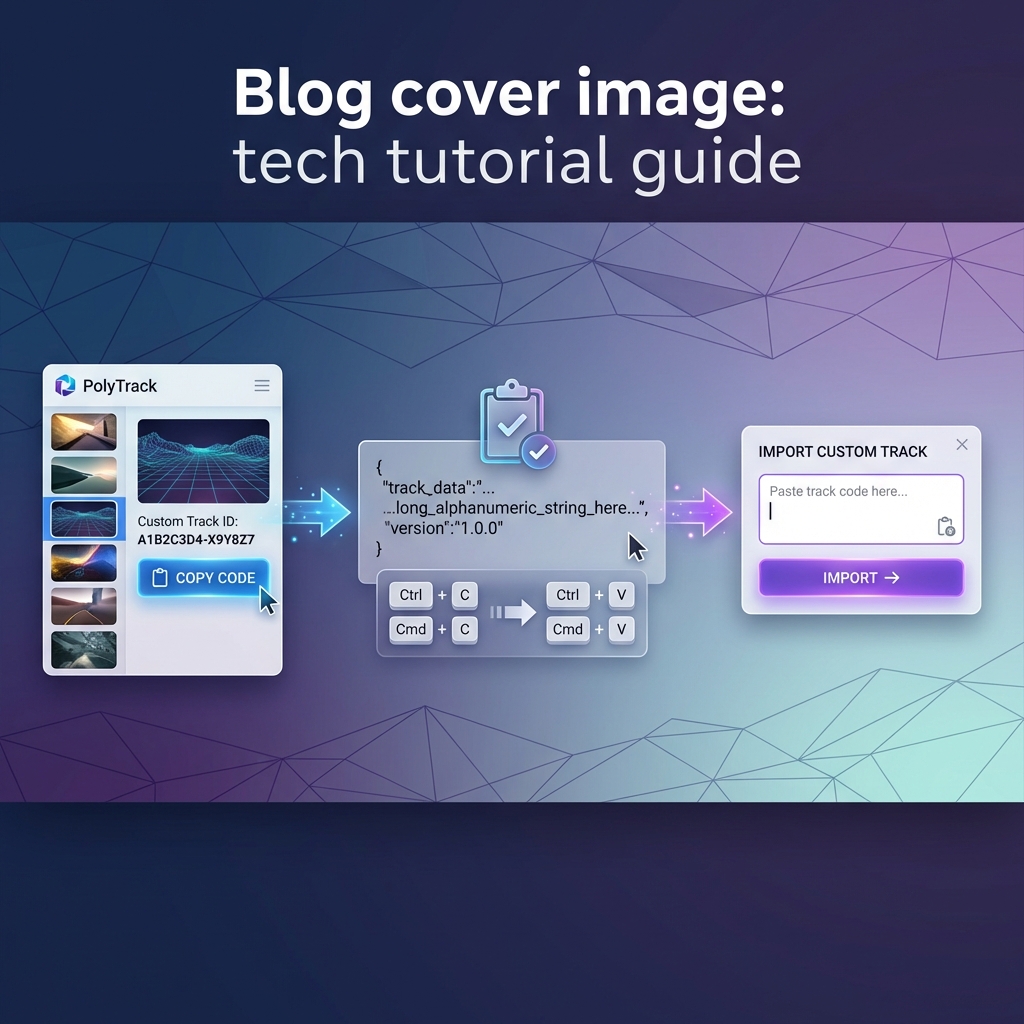
| Copy Selection | Ctrl + C |
| Paste Selection | Ctrl + V |
| Cut Selection | Ctrl + X |
| Undo | Ctrl + Z |
| Redo | Ctrl + Shift + Z |
| Select Multiple | Shift + click |
| Select All | Ctrl + A |
Editor Navigation
| Action | Input |
|---|---|
| Toggle Grid Snap | G |
| Test Track | Enter |
| Exit Test Mode | Escape |
| Open Block Palette | Tab (in placement mode) |
| Save Track | Ctrl + S |
| Export Code | Menu → Export |
Pro Tips for the Editor
F3 Camera Calibration: Press F3 to enter camera calibration mode where you can set the overhead angle, pan speed, and zoom sensitivity. A 45-degree angle at slow pan speed is the community standard for precise block placement.
Grid Density: Adjusting the grid snap density allows you to place blocks at non-standard intervals. A density of 0.5 enables half-grid placement, which is essential for smooth transitions and slope-matching between different road angles.