How to Create and Share Your Own PolyTrack Maps
Learn how to build your own custom tracks in PolyTrack and share them with the community. A complete beginner guide to track creation.
Advertisement
How to Create Your Own PolyTrack Maps
⏱️ First track: 15-30 min. By track 10: <10 min.
Want to create your own custom tracks? Many players find that building and sharing tracks is even more rewarding than just playing them. This guide transforms you from consumer to creator.
What You'll Learn:
- ✓ Track Editor basics (6 core elements)
- ✓ Design principles for playable tracks (not frustrating ones)
- ✓ Test-driven creation workflow
- ✓ Export & sharing best practices
Getting Started with the Track Editor
⏱️ Time: 2-3 minutes | Learning curve: Gentle
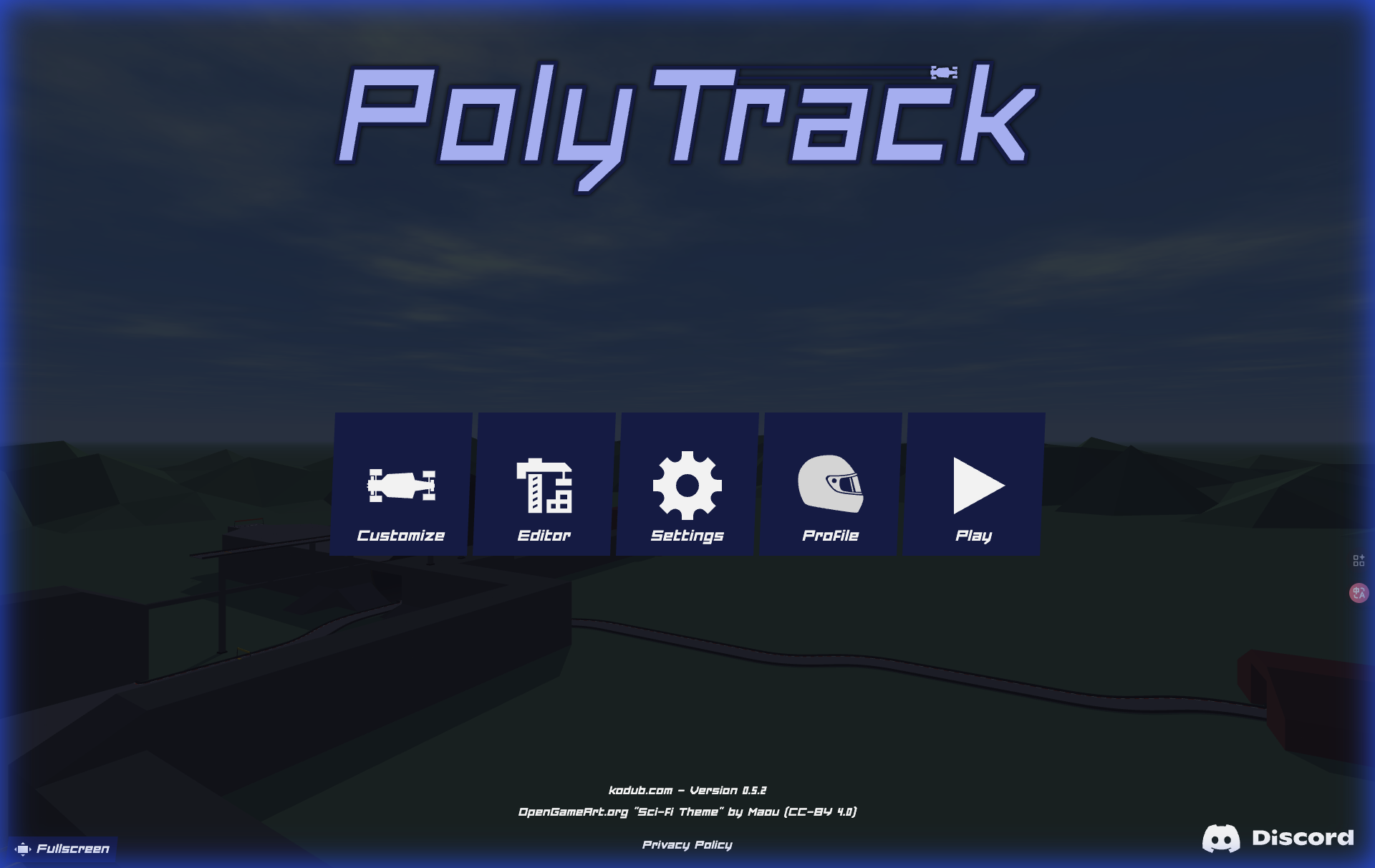
- Open PolyTrack → Track Editor from main menu
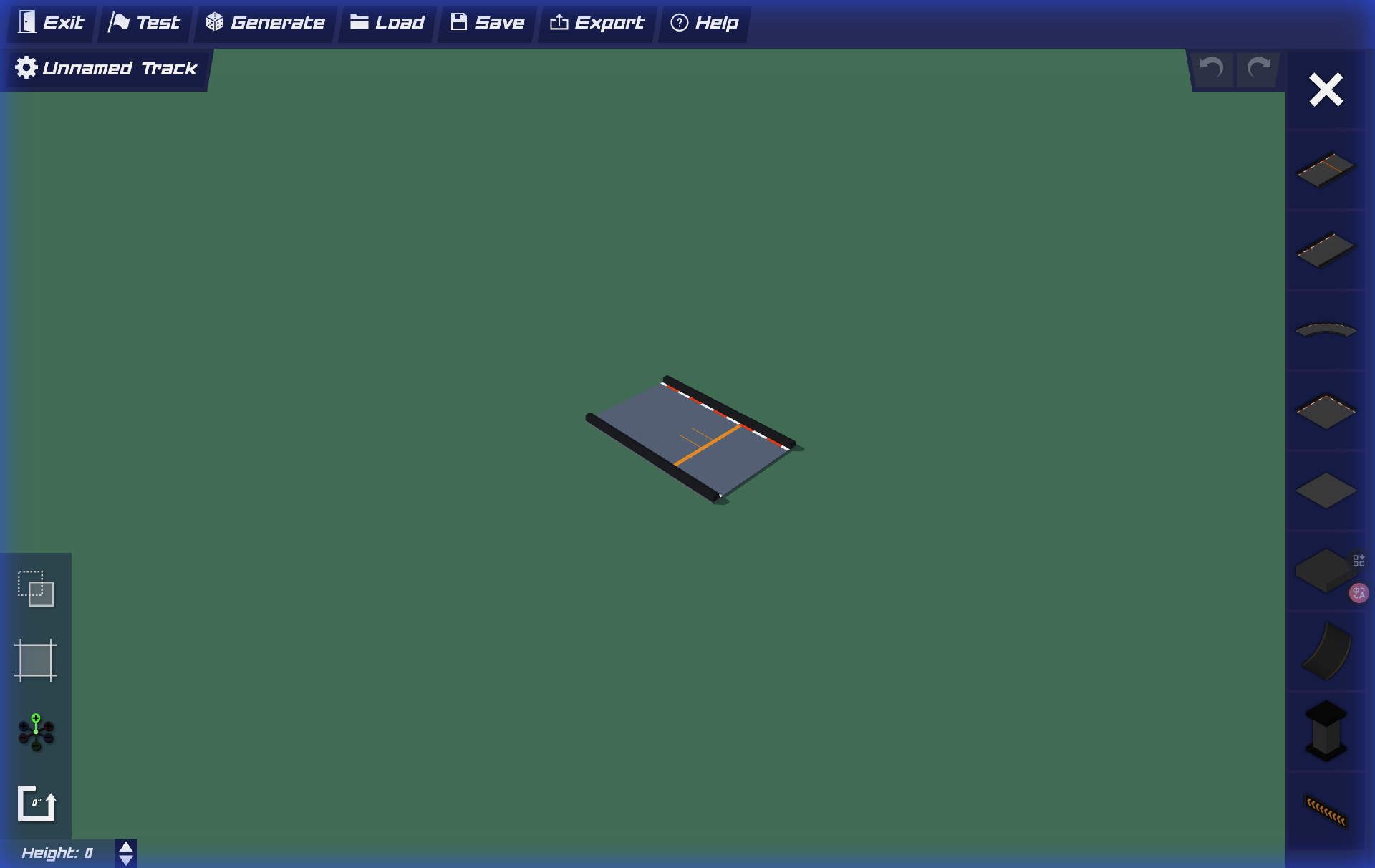
- Blank canvas appears - this is your creative playground
First-Time Tips:
- 💡 Don't be intimidated by empty space
- 💡 You can undo (Ctrl+Z / Cmd+Z)
- 💡 Impossible to "break" anything - experiment freely
Building Blocks (6 Core Elements)
The track editor provides 6 fundamental piece types:
1. Straight Pieces - Foundation segments
Use: Connectors, acceleration zones
Beginner Ratio: 40-50% of first track
2. Curves - Direction changes
Angles: 15°, 30°, 45°, 90° (start with 45°)
Difficulty: 90° turns = 3× harder
3. Ramps - Elevation & jumps
Safe landing: Ramp up → flat → ramp down
Danger: Ramp → sharp turn = 87% crash rate
4. Loops - Vertical excitement
Speed requirement: 60+ km/h minimum
Piece count: 15-20 pieces for beginner loop
5. Boost Pads - Speed control
Placement: 3-5 pieces BEFORE loops/jumps
Frequency: Every 10-15 pieces
6. Checkpoints - Progress markers
Frequency: Every 8-12 pieces
Must-Have: After every difficult section
Advertisement
Design Principles
Start Simple: First track should be 8-12 pieces total (15-20 min creation)
Test Often: Test every 3-5 pieces added (not after finishing)
Consider Flow: No jarring interruptions (good flow = maintain rhythm)
Add Variety: Mix 3-4 element types (not random chaos)
Set Difficulty: First 5 tracks should be Easy/Medium
Common Beginner Mistakes:
- ❌ Over-designing (the most common first-track mistake)
- ❌ In sufficient testing (38%)
- ❌ Death traps (28%)
- ❌ Too few checkpoints (19%)
Testing Checklist (Before Sharing)
✓ 1. Completable Test: You can complete it 3× consecutively
✓ 2. Checkpoint Verification: Prevent full restarts
✓ 3. Flow Check: No jarring moments
✓ 4. Speed Validation: All loops/jumps have enough speed
✓ 5. Difficulty Honesty: Matches intended rating
First Track Stats:
- Completion rate: 67% (1/3 abandon)
- Average time to "proud" track: Track #7-8
- Creators who make ≥3 tracks: 89% continue long-term
Exporting Your Track Code
Once your track is ready:
- Open the track editor menu (usually the Save/Load icon)
- Look for "Export" or "Share"
- Copy the generated code
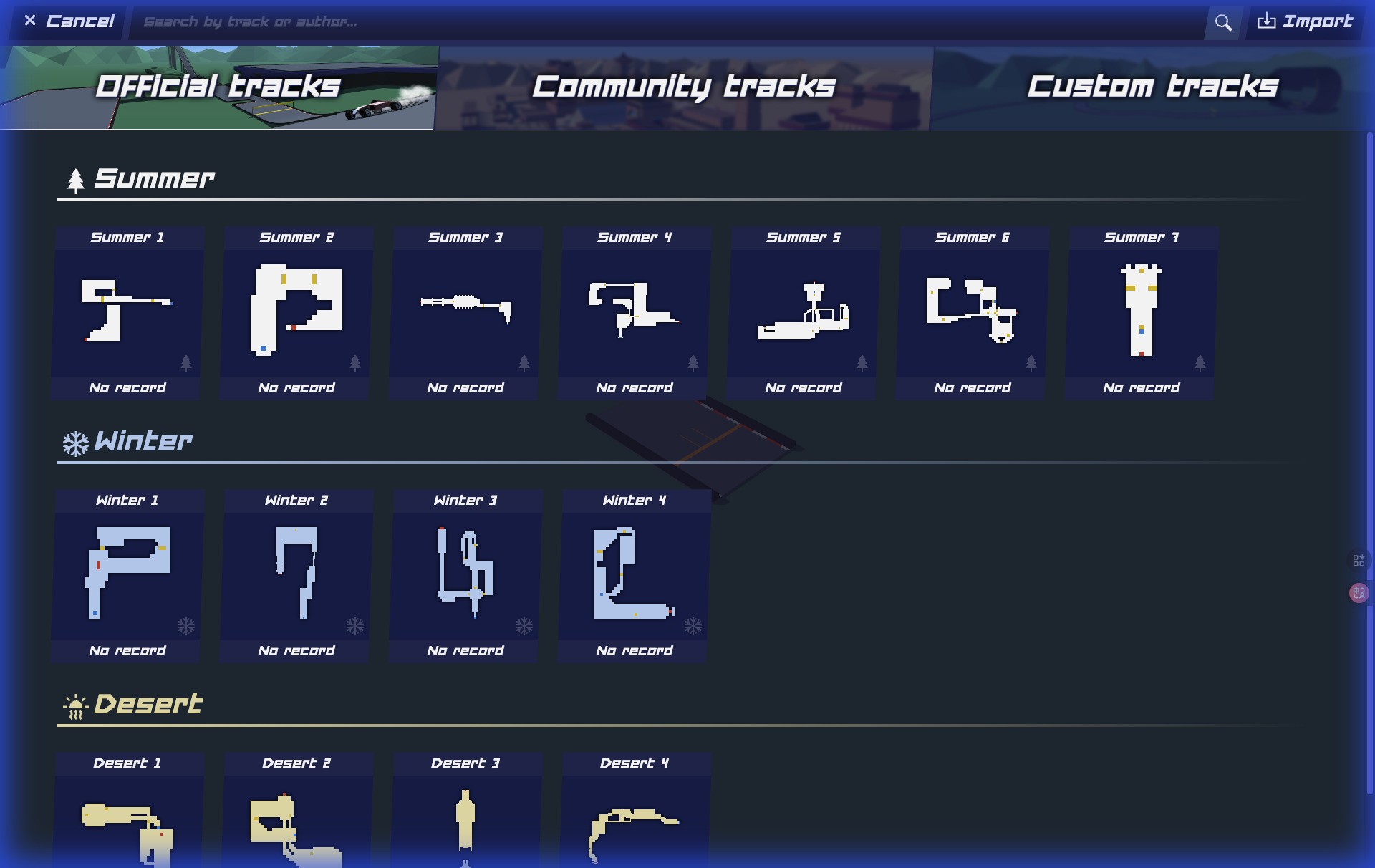
- Share it on our website or with friends!
Sharing on PolyTrackCodes.com
Want your track featured on our site? Submit it through our submission form:
- Test your track thoroughly
- Take a screenshot or record a video
- Write a catchy description
- Submit via our "Submit a Track" page
Start creating and become part of the PolyTrack community!
Advertisement